Mix It Up Overlay
Prerequisites
I have written this document on the assumption that the following prerequisites are in place:
- You are an Official Warsaken streamer with access to download Overlays, Wait Screens, Banners and Music.
- You are using Windows 10 or 11; these instructions will work on Mac or Linux. However, some steps may vary.
- You have unzipped the warsakenstreamer package in an accessible location on your PC; for example, C:\Warsaken
- You have Mix It Up 1.0 or above installed and a streaming service connected.
- You have installed VLC Media Player (to enable the VLC Media plugin in OBS).
- You have installed OBS Studio 29 or above.
For the best viewer experience, you should stream at 60 frames per second if your computer and broadband can do so. Other common values are 30 frames per second or 24 frames per second - if you use a value other than 60, adapt the instructions below to use your chosen framerate.
This guide is not compatible with older versions of OBS, Mix It Up or other broadcast and overlay tools. Although some of the principles still apply.
Font
The Warsaken brand guidelines recommend using the Roboto font, which is freely available for commercial use from Google Fonts.
- Download the Roboto Font Family from Google Fonts.
- Unzip the archive into a folder.
- Select all of the
.ttffiles in the folder, right-click and select Install.
You may need to restart Mix It Up to ensure the files are visible if it is already running.
OBS & Mix It Up
Starting Soon and Be Right Back Scenes
The streamer pack comes with two full-screen videos: “Starting Soon” and “Be Right Back”.
Add these to OBS as separate scenes; first, we start with Starting Soon:
- Switch to OBS and create a new empty scene by clicking the + underneath Scenes and name it “Starting Soon”.
- Click the + button under Sources, select VLC Video Source, and name it
Starting Soon Video. - Click the + next to the playlist and select
C:/Warsaken/Official Warsaken Theme/Warsaken Wait Screens/Wait_Starting_Soon.mp4 - Ensure that Loop Playlist is selected, then click OK.
Add these to OBS as separate scenes; second, we finish with Be Right Back:
- Switch to OBS and create a new empty scene by clicking the + underneath Scenes and name it “Be Right Back”.
- Click the + button under Sources, select VLC Video Source, and name it
Be Right Back Video. - Click the + next to the playlist and select
C:/Warsaken/Official Warsaken Theme/Warsaken Wait Screens/Wait_Be_Right_Back.mp4 - Ensure that Loop Playlist is selected, then click OK.
Overlay Setup
In this section, I will show you how to create a scene named “Warsaken Overlay”, containing all your overlay elements. Then, you will add this “Warsaken Overlay” scene as a source to all other scenes; this is called scene nesting and allows OBS to use less CPU and more efficiently manage state across scenes.
Let’s setup the Overlay in Mix It Up:
- Click the Settings button (⚙) in the top right-hand corner of the screen.
- Select the Overlays Page, and copy the Overlay URL to the clipboard by clicking the copy button.
- Switch to OBS and create a new empty scene by clicking the + underneath Scenes and name it “Warsaken Overlay”.
- In the Sources panel, click the + at the bottom and select Browser:
- Name it
Mix It Up Overlay, then click OK. - In the next screen, paste the URL you copied from Mix It Up in the URL box,
- Set the Width to
1920, - The Height to
1080, - Check Use Custom Framerate and set it to
60or your preferred framerate (i.e.30or24), - Check Control Audio via OBS,
- Remove the contents of the Custom CSS box,
- Check the Shutdown source when not visible checkbox,
- Check the Refresh browser when scene becomes active checkbox.
- Name it
- The new source should fill the entire scene; if it overflows the edge: right-click the source and choose Transform, then Fit to Screen.
- Now go back to Mix It Up, click the Hamburger Menu in the top left of the Screen (☰), and select Services.
- Click Overlay at the top to fold out the Overlay Service and type “Mix It Up Overlay” in the Streaming Software Source Name box.
- Click Connect, then Test Connection.
- You should get a message confirming the Overlay is connected correctly. If you get an error message, you should refresh the browser source in OBS by opening up the source and selecting Refresh cache of current page.
Great work; you are now well on your way to setting up your Warsaken Overlay in Mix It Up.
Warsaken Overlay
Now you have an OBS Overlay working with Mix It Up; you can add Warsaken-specific graphics to it in Mix It Up.
- In Mix It Up, click the Hamburger Menu in the top left of the Screen (☰) and select Overlay Widgets.
- Click the Add Overlay Widget at the bottom and select Video from the Type dropdown.
- Configure the Widget as follows:
- Name:
Frame Header, - Screen Position: Center,
- Refresh Time:
0, - Video File Path:
C:\Warsaken\Official Warsaken Theme\Warsaken Frame\Frame_Header.webm, - Width:
1920, - Height:
1080, - Toggle Loop to On.
- Name:
- Configure the Widget as follows:
- Click the Add Overlay Widget again at the bottom and select Video from the Type dropdown.
- Configure the Widget as follows:
- Name:
Frame Lower, - Screen Position: Center,
- Refresh Time:
0, - Video File Path:
C:\Warsaken\Official Warsaken Theme\Warsaken Frame\Frame_Lower.webm, - Width:
1920, - Height:
1080, - Toggle Loop to On.
- Name:
- Configure the Widget as follows:
Add a camera in a frame
Using a camera is a personal choice; neither Twitch nor Warsaken require you to stream with a camera on. So skip this section if you wish to avoid having your face on camera.
If you cannot use either a Green Screen or Background Removal, Warsaken has provided a frame for your camera.
Click the Add Overlay Widget again at the bottom and select Image from the Type dropdown.
- Configure the Widget as follows:
2. Name:
Camera Frame3. Screen Position:Center4. Refresh Time:05. Video File Path:C:\Warsaken\Official Warsaken Theme\Official Warsaken Theme\Warsaken Frame\Frame_Streamer_Circle_Right.png6. Width:19207. Height:1080
If you wish your camera to appear on the left of the screen rather than the Right, use Frame_Streamer_Circle_Left.png instead.
Finally, switch back to OBS, select the “Mix It Up Overlay” source, and click the Refresh button under the preview.
It should now look like this:
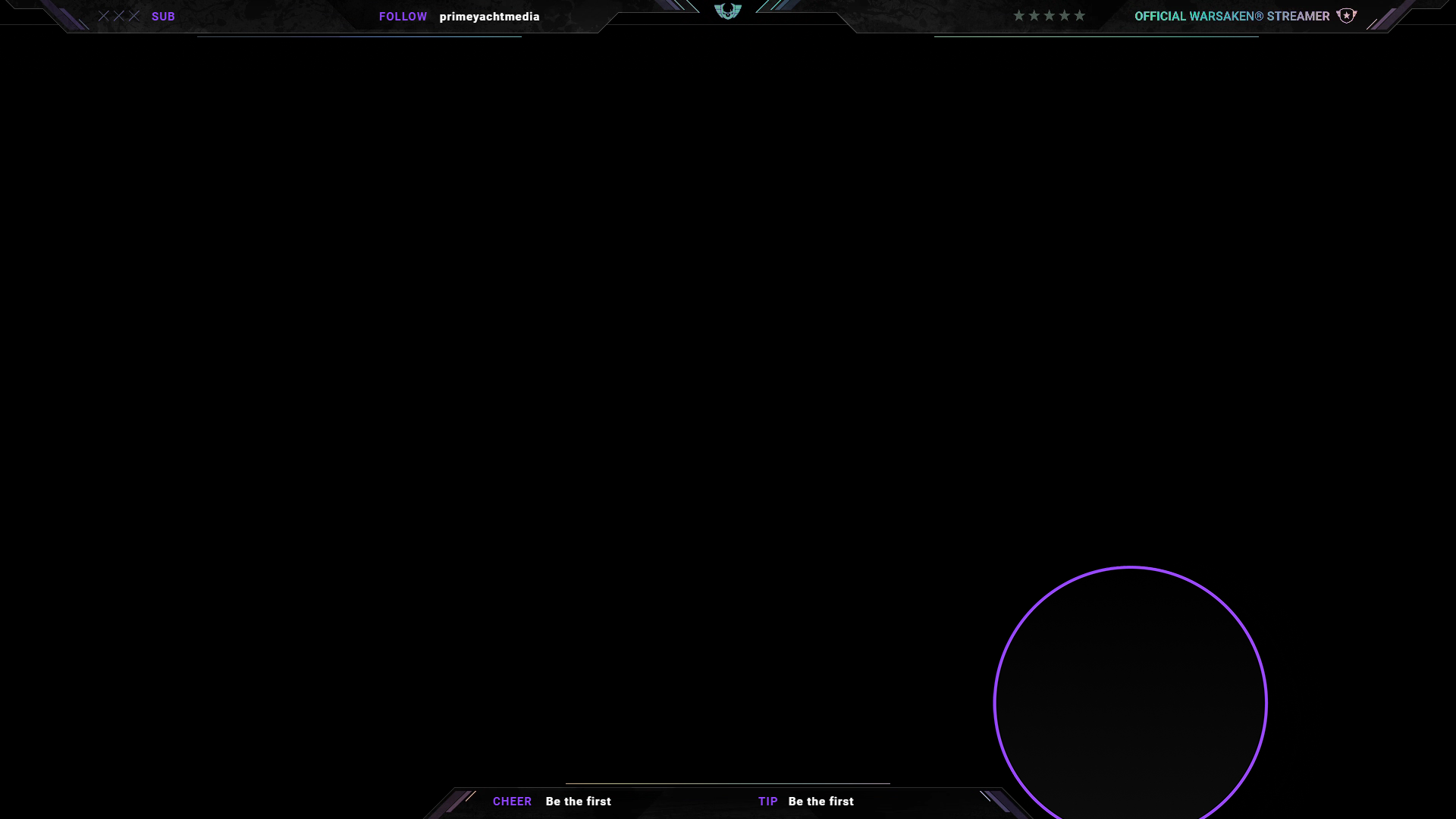
The remainder of this section is completed entirely in OBS. Mix It Up is not used to manage the camera.
Add your camera to OBS:
- With the “Warsaken Overlay” scene selected, click the + in the Sources panel and select Video Capture Device.
- Name it
Main Camera, accept the defaults and click OK. - Right-click the “Main Camera” source and choose Filters.
- Under Effects Filters, click the + and choose Image Mask/Blend; name it “Warsaken Mask”:
- Select “C:/Warsaken/Official Warsaken Theme/Warsaken Frame/Frame_Streamer_Head_Mask.png”
- Click OK
- Again under Effects Filters, the + and choose Color Correction, and accept the default name:
- Adjust the Gamma, Contrast, Brightness and Saturation sliders to achieve a darker colour grade.
- Every camera and lighting scenario is different, so you must judge the settings for yourself, however:
- Gamma: increase slightly,
- Contrast: increase to around 1.5,
- Brightness: decrease slightly,
- Saturation: increase slightly.
- Click OK to close the filters.
- Right-click the camera source, then choose Edit Transform:
- Set the Position to
1051 px,728 px. - Set the Size to
873 px,491 px. - Click Close.
- Set the Position to
Latest Sub, Follower, Tips and Bits
Note: in most jurisdictions, there is a difference between a “Donation” and a “Tip”. PayPal is less likely to uphold a refund of a “Tip” than a “Donation”. Therefore try to use the word “Tip” when viewers send you fiat currency.
In this section, you will add dynamic elements starting with the Latest Subscriber to your Overlay to display the latest subscribers, followers, tips, and bits:
Important
As of Mix It Up 1.2.0.10 overlays are a little bit broken, so you may need to use a top pixel position of -5.
- In Mix It Up, click the Hamburger Menu in the top left of the Screen (☰) and select Overlay Widgets.
- Click the Add Overlay Widget at the bottom and choose Text from the Type dropdown:
- Name:
Latest Subscriber Label, - Refresh Time:
0, - Set Screen Position to Pixels,
- Left Pixel Position:
210, - Top Pixel Position:
5(see note above), - Layer:
100, - Text:
SUB, - Size:
20, - Font Color:
#9247ff - Font Name:
Roboto, - Click the B to make it Bold.
- Name:
- Click the Add Overlay Widget at the bottom and select Text from the Type dropdown:
- Name:
Latest Subscriber, - Refresh Time:
5, - Set Screen Position to Pixels,
- Left Pixel Position:
260, - Top Pixel Position:
5(see note above), - Layer:
100, - Text:
$latestsubscriberusername, - Size:
20, - Font Color:
White, - Font Name:
Roboto, - Click the B to make it Bold.
- Name:
Note: if you do not have any Subscribers or if Mix It Up was not connected to your account and running when someone subscribes, the label will read as “$latestsubscriberusername” this is entirely normal and will change when someone subscribes.
Now we repeat the steps above for the Latest Follower:
Important
As of Mix It Up 1.2.0.10 overlays are a little bit broken, so you may need to use a top pixel position of -5.
- Click the Add Overlay Widget at the bottom and select Text from the Type dropdown:
- Name:
Latest Follower Label, - Refresh Time:
0, - Set Screen Position to Pixels,
- Left Pixel Position:
500, - Top Pixel Position:
5(see note above), - Layer:
100, - Text:
FOLLOW, - Size:
20, - Font Color:
#9247ff, - Font Name:
Roboto, - Click the B to make it Bold.
- Name:
- Click the Add Overlay Widget at the bottom and select Text from the Type dropdown:
- Name:
Latest Follower, - Refresh Time:
5, - Set Screen Position to Pixels,
- Left Pixel Position:
590, - Top Pixel Position:
5(see note above), - Layer:
100, - Text:
$latestfollowerusername, - Size:
20, - Font Color:
White, - Font Name:
Roboto, - Click the B to make it Bold.
- Name:
Now we repeat the steps for the Latest Cheer:
Important
As of Mix It Up 1.2.0.10 overlays are a little bit broken, so you may need to use a top pixel position of 1025.
- Click the Add Overlay Widget at the bottom and select Text from the Type dropdown:
- Name:
Latest Cheer Label, - Refresh Time:
0, - Set Screen Position to Pixels,
- Left Pixel Position:
650, - Top Pixel Position:
1043(see note above), - Layer:
100, - Text:
CHEER, - Size:
20, - Font Color:
#9247ff, - Font Name:
Roboto, - Click the B to make it Bold.
- Name:
- Click the Add Overlay Widget at the bottom and select Text from the Type dropdown:
- Name:
Latest Cheer, - Refresh Time:
5, - Set Screen Position to Pixels,
- Left Pixel Position:
720, - Top Pixel Position:
1043(see note above), - Layer:
100, - Text:
$latestbitscheeredusername x $latestbitscheeredamount, - Size:
20, - Font Color:
White, - Font Name:
Roboto, - Click the B to make it Bold.
- Name:
Finally, we repeat the steps for the Latest Tip:
Important
As of Mix It Up 1.2.0.10 overlays are a little bit broken, so you may need to use a top pixel position of 1025.
- Click the Add Overlay Widget at the bottom and select Text from the Type dropdown:
- Name:
Latest Tip Label, - Refresh Time:
0, - Set Screen Position to Pixels,
- Left Pixel Position:
1000, - Top Pixel Position:
1043(see note above), - Text:
TIP, - Size:
20, - Font Color:
#9247ff, - Font Name:
Roboto, - Click the B to make it Bold.
- Name:
- Click the Add Overlay Widget at the bottom and select Text from the Type dropdown:
- Name:
Latest Tip, - Refresh Time:
5, - Set Screen Position to Pixels,
- Left Pixel Position:
1040, - Top Pixel Position:
1043(see note above), - Text:
$latestdonationusername ($latestdonationamount), - Size:
20, - Font Color:
White, - Font Name:
Roboto, - Click the B to make it Bold.
- Name:
Alerts
Alerts provide audio and visual feedback when your viewers complete various actions; the Warsaken Streamer pack has support for the following activities:
- Cheers - A user donates bits, crypto or fiat currency to the streamer.
- Follow - A user follows your channel.
- Subscribe - A user subscribes to your channel.
- Raid - A fellow streamer raids your channel.
First, we will set up cheers:
- In Mix It Up, click the Hamburger Menu in the top left of the Screen (☰) and select Events.
- Find Twitch Channel Bits Cheered and click the Add Command button.
- Select Overlay (Images & Video) from the Action at the bottom and click the +.
- Change the Action to “Video”.
- Video File Path:
C:\Warsaken\Official Warsaken Theme\Warsaken Alert Boxes\Warsaken_Alert_Donation.webm - Width:
1920 - Height:
1080 - Duration:
6
- Select Wait from the Action at the bottom and click the +.
- Set the Amount to
0.5
- Set the Amount to
- Select Overlay (Images & Video) from the Action at the bottom and click the +.
- Leave Action as “Text”
- Text:
$username ($bitsamount bits) - Font Color:
White - Font Name:
Roboto - Click the B to make it bold.
- Duration:
3.5 - Entrance Animation:
Fade In - Exit Animation:
Fade Out
- Select Overlay (Images & Video) from the Action at the bottom and click the +.
- Select Wait from the Action at the bottom and click the +.
- Set the Amount to
7
- Set the Amount to
- Click the💾icon to save your event.
- Click the▶️button next to Twitch Channel Bits Cheered, then click Test Command to check your alert works. You should be able to see the alert, alert text and hear a sound through your stream.
Second, we will set up follows:
- In Mix It Up, click the Hamburger Menu in the top left of the Screen (☰) and select Events.
- Find Twitch Channel Followed and click the Add Command button.
- Select Overlay (Images & Video) from the Action at the bottom and click the +.
- Change the Action to “Video”.
- Video File Path:
C:\Warsaken\Official Warsaken Theme\Warsaken Alert Boxes\Warsaken_Alert_Follower.webm - Width:
1920 - Height:
1080 - Duration:
6
- Select Wait from the Action at the bottom and click the +.
- Set the Amount to
0.5 - Select Overlay (Images & Video) from the Action at the bottom and click the +.
- Leave Action as “Text”
- Text:
$username - Font Color:
White - Font Name:
Roboto - Click the B to make it bold.
- Duration:
3.5 - Entrance Animation:
Fade In - Exit Animation:
Fade Out
- Set the Amount to
- Select Overlay (Images & Video) from the Action at the bottom and click the +.
- Select Wait from the Action at the bottom and click the +.
- Set the Amount to
7
- Set the Amount to
- Click the💾icon to save your event.
- Click the▶️button next to Twitch Channel Followed, then click Test Command to check your alert works. You should be able to see the alert, alert text and hear a sound through your stream.
Third, we will set up subscribers:
- In Mix It Up, click the Hamburger Menu in the top left of the Screen (☰) and select Events.
- Find Twitch Channel Subscribed and click the Add Command button.
- Select Overlay (Images & Video) from the Action at the bottom and click the +.
- Change the Action to “Video”.
- Video File Path:
C:\Warsaken\Official Warsaken Theme\Warsaken Alert Boxes\Warsaken_Alert_Sub.webm - Width:
1920 - Height:
1080 - Duration:
6
- Select Wait from the Action at the bottom and click the +.
- Set the Amount to
0.5
- Set the Amount to
- Select Overlay (Images & Video) from the Action at the bottom and click the +.
- Leave Action as “Text”
- Text:
$username - Font Color:
White - Font Name:
Roboto - Click the B to make it bold.
- Duration:
3.5 - Entrance Animation: Fade In
- Exit Animation: Fade Out
- Select Wait from the Action at the bottom and click the +.
- Set the Amount to
7
- Set the Amount to
- Click the💾icon to save your event.
- Click the▶️button next to Twitch Channel Followed, then click Test Command to check your alert works. You should be able to see the alert, alert text and hear a sound through your stream.
- Repeat steps 1-5 for the following three events:
- Twitch Channel Resubscribed,
- Twitch Channel Mass Subscriptions Gifted, substituting $username with
_$username_ - $subsgiftedamount gifted subs - Twitch Channel Subscription Gifted, substituting $username for
$targetusernamein the Text field.
Finally, we will set up raids:
- In Mix It Up, click the Hamburger Menu in the top left of the screen (☰) and select Events.
- Find Twitch Channel Raided and click the Add Command button.
- Select Overlay (Images & Video) from the Action at the bottom and click the +.
- Change the Action to “Video”.
- Video File Path:
C:\Warsaken\Official Warsaken Theme\Warsaken Alert Boxes\Warsaken_Alert_Raid.webm - Width:
1920 - Height:
1080 - Duration:
6
- Select Wait from the Action at the bottom and click the +:
- Set the Amount to
0.5
- Set the Amount to
- Select Overlay (Images & Video) from the Action at the bottom and click the +.
- Leave Action as “Text”
- Text:
$username ($raidviewercount viewers) - Font Color:
White - Font Name:
Roboto - Click the B to make it bold.
- Duration:
3.5 - Entrance Animation: Fade In
- Exit Animation: Fade Out
- Select Wait from the Action at the bottom and click the +.
- Set the Amount to
7
- Set the Amount to
- Click the💾icon to save your event.
- Click the▶️button next to Twitch Channel Followed, then click Test Command to check your alert works. You should be able to see the alert, alert text and hear a sound through your stream.
- Select Overlay (Images & Video) from the Action at the bottom and click the +.
Add Overlay to other Scenes
The final step to enable your Overlay is to add it to each of your scenes as follows:
- Click the + in the Sources panel and select Scene.
- Select Warsaken Overlay and click OK.
- Ensure that Warsaken Overlay is at the top of the list of sources by dragging it upwards.
- Repeat 1-3 for other scenes, including Be Right Back and Starting Soon.
Using scene nesting enables OBS to manage resources efficiently by reusing camera and browser sources. Scene Nesting also lets you make changes in your overlay that apply to multiple scenes at the same time.
Stingers
Stingers, sometimes called idents, provide smooth transitions between two scenes in OBS. Stingers are one of the few things you need to implement in OBS directly. Therefore, mix It Up will not be used for this section.
All Warsaken Stingers are 2 seconds long (60 frames total), and the transition point must be correctly set halfway through the Stinger to avoid flickering scenes.
- Find the Scene Transitions dock in OBS; if it has been closed, you can access it through Docks -> Scene Transitions.
- Click the + button and select Stinger.
- Name it
Warsaken - Victor.- Select
Official Warsaken Theme/Warsaken Stingers/Stinger_001.webmfor the Video File. - Transition Point Style: Frame
- Transition Point (frame):
30
- Select
- Click the Preview Transition button; if everything is correct, the “A” in the preview will transition smoothly to “B”, with the Stinger hiding the transition.
You can add additional stingers if you want some variation in your transitions:
Stinger_001.webm: Victor, the AnonymousStinger_002.webm: Riku Ito, AceStinger_003.webm: Kyodo Lee, RoninStinger_004.webm: Sawuyer, the ResurgentStinger_005.webm: Queen Awati
The transition selected in Scene Transitions is the default transition for all scenes. However, you can override individual scene transitions by right-clicking the scene and selecting Transition Override.
Music
All of the Warsaken music by Numbskull is available in the streamer pack. However, you must ensure you mute the Warsaken music in-game, as this will only play during a game, leaving you with dead space between matches.
Then add a VLC Media source to a scene:
- Click the + button under Sources and select VLC Video Source.
- Name it
Warsaken Music3. Check Loop Music 4. Click the + to the right of the playlist and select Add Directory, then select the following folders: 5.Music/Warsaken Tracks6.Music/NumbSkull Tracks7. Click OK to close the properties. - Now go through all scenes you want music in and add the source you just created.
- Click the + button under Sources and select VLC Video Source.
- Check Add Existing.
- Select
Warsaken Music. - Click OK.
Add Chat Timer
To comply with Warsaken Official guidance, you must configure Mix It Up to broadcast a message at least every 30 minutes to your chat:
- In Mix It Up, click the Hamburger Menu in the top left of the Screen (☰) and select Timers.
- Click New Command at the bottom.
- Name:
Warsaken Music - Command Group:
Warsaken - Group Interval: 30 Minutes
- Select Chat Message from Actions at the bottom, and click the + button.
- Paste in the following without the quotes:
Like the music you’re listening to? Check out NumbSkull on SoundCloud and Spotify https://www.soundcloud.com/numbskullmusic - Click the💾icon to save your timer.
Optional: Add Sidechain Ducking
Sidechain Ducking means reducing the volume of background music or game sounds while you are talking. You can enable it in OBS as follows:
- Find the Audio Mixer panel and right-click Warsaken Audio, then select filters.
- Under Audio/Video Filters, click + and select Compressor.
- Name it
Ducking.- Ratio::
32:1 - Threshold:
-36dB - Attack:
100ms - Release:
600ms - Output Gain:
0dB - From Sidechain/Ducking Source, select the name of your microphone source.
- Ratio::
A complete tutorial on getting fantastic stream audio is outside of the scope of this tutorial. However, I recommend following EposVox’s tutorials on his Perfect your audio ASAP Playlist.